
USB C and USB 3.1, USB 3.2, USB4 and USB4 V2 Explained

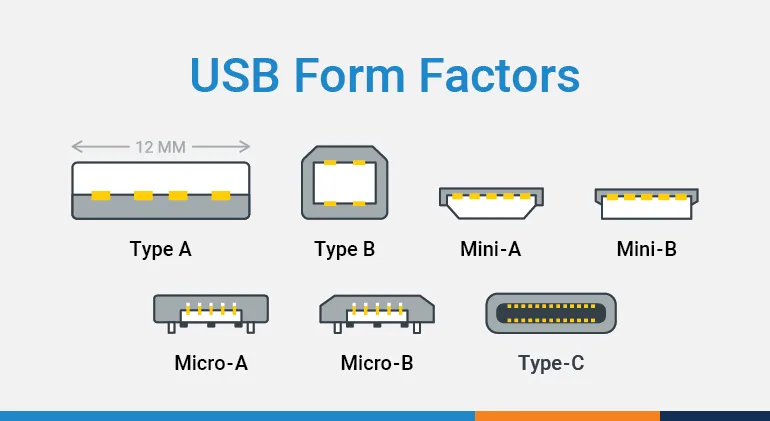
The Universal Serial Bus (USB) port is perhaps the most commonly used and easily recognizable PC connectivity port found on modern hardware. You probably have a drawer full of cables with a variety of USB form factors including Type A, Type B, Mini and Micro versions of those, and now USB Type-C, which is increasingly being written as simply Type-C, USB-C, or USB C.
Introduced in 2014, USB C was designed to meet the following goals:
Universal connector to meet the growing needs for data transfer and power delivery in a wide range of devices.
Smaller and faster than previous USB types.
Data and power transmitted over the same cable.
Reversible design so that there’s no wrong way to plug it in.
While these goals are clear, there is still a lot of confusion. Consider this article as your ultimate guide to USB C. Let’s begin with a little overview of where we started.
What is USB A?
The familiar rectangular USB A, also written as USB-A or USB Type-A, gained popularity in the mid 90’s. Standard USB A connectors have a distinct top and bottom which requires them to be oriented properly in order to be plugged in.
What is USB B?
The more square shaped USB Type-B is somewhat less common but is electrically identical to USB A connectors. USB B connectors are frequently used on printers, though they can also be found on some monitors and USB hubs.
What is Micro USB?
The Micro USB (and Mini USB) is a smaller version of the USB A interface. When it was introduced, its small size made it ideal to connect and charge portable electronic devices like power banks, e-readers, handheld GPS devices and cell phones.
What is USB C?
USB C refers to the physical shape of the newest USB connector. (Don’t confuse the USB C connector shape with the speed of data transfer standards: USB 3.1, USB 3.2 or USB4. More on that later.)


Key differentiators of USB C versus its predecessors include:
Slim and sleek design ideal for mobile electronic devices
Robust connector, strong enough for computers
Symmetrical and reversible which means there is no “wrong way” to plug it in.
This eliminates one of the most common complaints about the other USB form factors.
This newest USB connector is intended to replace ALL other USB form factors and provide a future-proof, fully-featured option for hardware designers to standardize on.
Note that while USB C ports are becoming the standard on mobile devices and consumer hardware, industrial PCs are just beginning to integrate USB C ports into their latest generation devices.
USB shape vs. USB performance
It’s important to make the distinction between a given USB port shape, or form factor (like Type-A or Type-C), and the data transfer rates and power delivery available over that port. The generational standards that dictate the performance of USB are expressed as a numerical value, like USB 2.0, USB 3.1, USB 3.2, USB4, and USB4 v2.
It all started back in 1996 with the introduction of USB 1.0 with a maximum data transfer rate of 12 Mbps (Megabits per second). The next generation,USB 2.0, maxed out at 480 Mbps. After those releases came versions with more complex numbers and capabilities.
That’s led to a lot of understandable questions from users including: What is the difference between USB 3.2 Gen 1 vs Gen 2 and USB 3.2 Gen 2×2? What about USB4 and USB4 Version 2? Are these still the naming conventions? Let’s break it down.
USB data performance language usage guidelines
To simplify some of the naming conventions, the USB Implementers Forum (USB-IF), the group that oversees USB standards development and is made up of representatives of some of the biggest tech companies, has written guidelines for USB data performance language usage. Hopefully with these guidelines, consistent messaging and terminology on all USB content including product packaging, marketing materials, and advertising can be the norm.
But that’s an evolving process that will take time. Keep reading for a breakdown of what the numbers in that document actually mean.
Breaking down USB data transfer rates
USB 5 Gbps: The specification name is USB 3.2 Gen 1, which used to be called USB 3.0. It offers a transfer rate of 5 Gbps, which is about 10 times faster than the USB 2.0 standard.
USB 10 Gbps: The specification name is USB 3.2 Gen 2 (released in July 2013) and it used to be called USB 3.1. It offers a transfer rate of 10 Gbps over the existing USB A and USB C connectors.
USB 20 Gbps: The specification name is USB 3.2 Gen 2×2 (released in September 2017) and it is available only through USB C connectors using two-lane operation. It offers 20 Gbps transfer speeds.
USB 40 Gbps: The specification name is USB4 (released in March 2019). It leverages the Thunderbolt 3 protocol and offers transfer speeds of 40 Gbps. (Note that the correct specification name is USB4 as defined by the USB developers. It is sometimes identified as USB 4 with a space.)
USB 80 Gbps: The specification name is USB4 Version 2.0 (released in October 2022). This updated specification extends USB4 speed and data protocol performance, enabling manufacturers to develop products that can deliver up to 80 Gbps transfer speeds, but can go even higher when configured asymmetrically: up to 120 Gbps in one direction and 40 Gbps in the opposite direction. This standard is also fully compatible with DisplayPort 2.1.
USB Marketing Name | Specification Name (Previous names in parentheses) | Transfer Speeds | Interfaces |
|---|---|---|---|
USB 5Gbps | USB3.2 Gen 1×1 (USB 3.0, USB 3.1 Gen 1, SuperSpeed) | 5Gbps | USB A, USB C, micro USB |
USB 10Gbps | USB 3.2 Gen 2×1 (USB 3.1, USB 3.1 Gen 2, SuperSpeed+) | 10Gbps | USB A, USB C, micro USB |
USB 10Gbps | USB 3.2 Gen 1×2 (USB 3.2, SuperSpeed+) | 10Gbps | USB C |
USB 20Gbps | USB 3.2 Gen 2×2 (USB 3.2, SuperSpeed+) | 20Gbps | USB C |
USB 40Gbps | USB4 | 40Gbps | USB C |
USB 80Gbps | USB4 Version 2 | 80Gbps+ | USB C |
Please note, that while the data transfer rates of USB4 and USB4 version 2 and even USB 3.2 Gen 2 and Gen 2×2 are impressive, many devices aren’t yet capable of reading or writing at those speeds. Actual speeds will be based on the host and destination devices (resorting to the lowest speed) as well as the capabilities of the USB cable being used.
USB C in the EU
The USBC charging port has been mandated in the EU starting in 2024. This new law is a part of a broader EU effort to make products more sustainable, to reduce electronic waste, and make consumers’ lives easier.
The first stage of the mandate's rollout applies to small electronics like cell phones, digital cameras, tablets, and more. Medium electronics, such as laptops, have until 2026 to implement USB C for charging although many manufacturers have already implemented this change.
While this change is being driven by the EU mandate, the benefits are being felt worldwide.
USB C and Apple™
To comply with the EU regulations mentioned above, Apple announced in September, 2023 that all new Apple products, starting with the iPhone 15 will now use the USB C port for charging. This replaces their proprietary Lightning port that was the standard charging method for iPhones and other Apple technology for 11 years. This means that all Apple devices like iPhones, iPads, AirPods, and Macs will share the same charger and cable with just about every other modern electronic device.
Apple noted that their new iPhone models would leverage the USB 3 standard to get up to 10 gigabits per second transfer speed. However, that is only available with the optional USB 3 cable. You won’t get that speed out of the box because (as of the iPhone 15 release), Apple is shipping a USB 2.0 cable with USB-C connectors. Which, as noted above, tops out at 480 Mbps transfer speed.
USB A – visual differences
Transfer speed differences are very important to understand when you’re connecting devices via USB. Since there is such a large jump in speed capabilities between generation 2 and generation 3, some manufacturers distinguish faster USB A ports with blue inserts. That is particularly true when they appear on the same device, like they do on the OnLogic HX300 Series of industrial computers shown here.


These computers offer both USB 2.0 (black ports) and USB 3.2 (blue ports).
USB cable compatibility & capabilities


One final variable to consider when trying to utilize USB 3.2 or USB4 transfer rates and power output to their fullest potential is the USB cable. All three parts of the connection equation have to be compatible with the desired transfer and/or charging rate. That includes the source (e.g. your computer), the USB cable, and the destination device (e.g. a hard drive or other system). When using products with different USB capabilities, the data transfer speed and charging capabilities will top out at the highest capability of the lowest performing component of the three.
Cables with more wires offer more features
The additional wires in USB 3.2 cables enable ultra fast data transfer as well as the dramatic increase in power output capabilities. They also provide additional features. For example, USB 3.2 connections can also offer DisplayPort capabilities, provided the hardware and cable are compatible. This makes 4k video output, data transfer, power output, and even power input possible over a single cable.
The power capabilities of USB
The power capabilities of USB are defined in yet another a separate specification – the USB Power Delivery (USB-PD) specification. This is completely separate from the USB generation and port type.
At the time of writing, USB-PD is on version 3.1 and can provide up to 240W of power over compatible USB C cables (more on that below) and up to 100 W with USB-A.
Here’s a rundown of the power features for USB-C:
Increased power delivery up to 240W.
Now a full-featured USB C cable can power desktop computers, laptops, docking stations, gaming PCs, and more.
The product with the power (host or peripheral) can provide the power. (Power direction is not fixed). For example:
A monitor plugged into the wall can power, or charge a laptop while still displaying.
USB power bricks or chargers can supply power through any of a laptop’s USB C ports.
This updated power delivery specification is a major leap forward from earlier versions and has huge potential to unify data and power delivery standards across a wide variety of electronic devices.
USB capabilities – convenient for both you and bad actors
These power capabilities have created a huge consumer market for small electronic devices that get their power through a USB port. For charging convenience, USB A and USB C ports are popping up in more and more places – dedicated public charging stations, airplane seats, cars, walls – just about anywhere possible.
However, no matter how convenient, you should exercise a little caution.
One of the great features of USB is that you can use it to power your device and transfer data in both directions through a single connection and cable. The ability to transfer both power and bi-directional data with a single cable introduces a liability called “juice jacking”.
Juice jacking
Juice jacking is a concern for devices like smartphones and tablets which use the same cable for charging and data transfer. The goal of a juice jacking attack is to either install malware on the device, or to copy potentially sensitive data.
When you plug your phone into your computer through a USB port, your phone appears as an external device to your computer. Consequently, you are enabled to share files back and forth. The same thing can happen when you plug your cell phone into a public USB port.
That connected device could enable someone you don’t know to potentially access your personal information. Bad actors might now have access to all of your private data. In addition, they have the ability to transfer files (like malware) to your device.
How can you prevent juice jacking?
According to the FCC, here are some additional tips on how you can guard yourself against juice jacking:
Carry your own charging cable and adapter for use with an AC power outlet
Carry an external battery
If a prompt appears after connecting to a USB port that asks you to select “share data”, “trust this computer”, or “charge only”, always select “charge only”
Invest in additional technology from a trusted supplier such as a charging-only cable (which has the data wires removed) or a data blocker which is sometimes called a USB condom.
What is a USB data blocker?
A USB data blocker is an adapter that looks like a sleeve that you put your USB connector into. The data blocker device physically blocks the data wire connections. This enables your device to continue to receive power, but not transfer data.
USB and industrial computers
While USB C and USB 3.2 are sometimes used interchangeably, they are not one and the same. Both USB A and USB C connectors are used to facilitate 5 Gbps and 10 Gbps (USB 3.2 Gen 1 and Gen 2) connections. USB C is also used to facilitate the 20 Gbps (USB 3.2 Gen 2×2), 40 Gbps (USB4), and 80 Gbps (USB4 V2) connections.
We expect that the majority of industrial computers will continue to feature both USB A and USB C connectors, as well as support for multiple data transfer speeds and power handling, for the foreseeable future. It rests on manufacturers to appropriately label USB ports going forward to help avoid confusion.
Conclusion: What you need to know about USB C and USB 3.1, USB 3.2, USB4, and USB4 V2
The launch of the USB C connector, and the evolution of USB data handling and charging standards offer some very exciting possibilities for today’s computing devices. However, they’ve also created their fair share of confusion. Here are the key takeaways:
USB C is NOT the same thing as USB 3.2 or USB4
USB C ONLY describes the physical connector
USB 3.2 and USB4 ONLY describe the capabilities of the port
A USB C connector does not automatically indicate that a USB port will support 10 GBps or faster data transfer speeds.
The term “USB 3.1” or “USB 3.2” may be used to describe ports that support either 5 Gbps data transfer (USB 3.2 Gen 1) or 10 Gbps data transfer (USB 3.2 Gen 2)
You must use the appropriate cables and compatible hardware in order to maximize the data transfer speeds, power delivery, and additional features (like 4k video)
USB 3.2 and USB4 are fully backwards compatible with previous versions, but USB C is not strictly backwards compatible due to the new port form factor, although adapters are readily available
USB C is helping to future proof connectivity. With its low profile, simple design, high-speed data transfer rates and power delivery capabilities, it ensures that devices equipped with USB C ports remain compatible with emerging technologies and standards for years to come.
If you still have questions, or would like to chat with one of our Solution Specialists about an upcoming project involving any of the USB standards or connectors covered here, don’t hesitate to reach out.
Selecting the right USB ports is just one of the decisions you'll need to make when selecting the best industrial computer. To help you make the right decision, we’ve collected the most important information to consider. Download our Complete Guide and Configuration Checklist to learn which variables, configuration options, software choices and more will inform the hardware you need to launch a successful project.


