
What is a GPU? A Beginners Guide

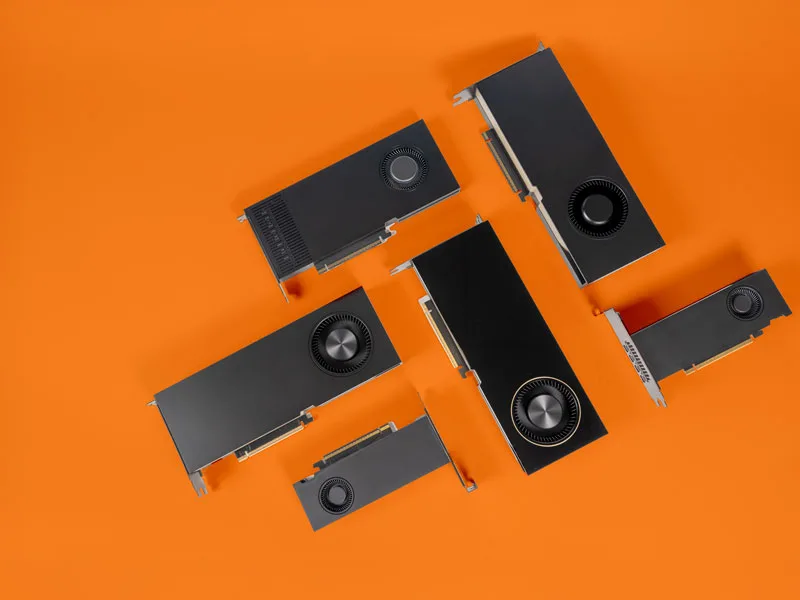
If you find yourself asking “What is a GPU and why would I need one?” you’re in the right place. Welcome to our GPU beginners guide.
What is a GPU?
The Graphics Processing Unit (GPU) is a specialized computer processor. Sometimes people call them graphics cards or video cards. As the name implies, engineers originally designed GPUs to process computer graphics including images, 3D graphics, and videos so that the CPU can focus on other general-purpose computing tasks.
Turns out their design is great for more than rendering images and video, they are the powerhouse enabling advancements in artificial intelligence (AI), machine learning, computer vision, and more. GPUs eliminate possible processing bottlenecks for faster results, more capabilities, and an improved user experience.
Continue reading to learn more about why GPU technology excels at these tasks and the best way to configure your industrial computer to support them.
But first you might be asking yourself how is the GPU different from the CPU? Let’s start with the basics.
What is a CPU?
CPU stands for Central Processing Unit and you will see it commonly referred to as the brain of the computer. Put simply, the CPU is electronic circuitry that controls data – including input, output and storage. The CPU makes sure that the computer operating system and applications all work.


GPU vs CPU
What’s the difference between a GPU and a CPU? Both the GPU and the CPU are silicon-based microprocessors that handle data. Their differences lie with how they process data and their physical processing units - their cores.
Data processing
CPUs perform serial computing - processing data one task after another.
GPUs perform parallel computing - processing many calculations at once.
The cores
CPUs have a handful of cores and it can vary widely.
For example:
Intel® N Series processors offers between 4 and 8 efficient cores and Intel® 13th generation Hybrid Core processors are available with up to 24 cores. (Note that Intel introduced Hybrid Core technology with 12th Gen. You can read more about that here.)
AMD Ryzen processors offers 8 cores and EPYC Embedded 7000 series processors offer up to 64 Cores.
GPUs might have 100s to 1000s of cores that are similar to CPU cores only smaller.
For example, NVIDIA Blackwell RTX Pro GPUs feature 24,064 CUDA cores and include 752 5th-generation Tensor cores and 188 4th-generation RT cores, aimed at high-end AI, rendering, and simulation workloads.
You can configure select OnLogic computers with this GPU including
Karbon 804 (K804)
Karbon 524 (K524)
Helix 524 (HX524)

GPU core types: RT, Tensor and CUDA
We mentioned 3 different types of cores found in the GPU in the previous section. Here are some quick definitions.
RT Cores or Ray Tracing Cores enable computer systems to render photorealistic graphics with physically accurate lighting including reflections, shadows, and more.
Tensor Cores are specifically targeted at mathematical matrix operations which make them ideal to accelerate deep learning and AI workloads.
CUDA Cores are the primary processor core type responsible for complex parallel mathematical calculations. Within GPU generations, higher CUDA core counts generally yield higher performance. (Note: CUDA stands for Compute Unified Device Architecture.)
What is a GPU used for?
Both CPUs and GPUs are really good at math. But as mentioned above, CPUs process the equations one task after another. On the other hand, a GPU can process the equations all at the same time. Because of this, GPUs offer extraordinary computational power for complex mathematical calculations.
As it turns out, rendering images and graphics boils down to a series of math problems. And, as we mentioned, GPUs excel at that. In fact, they accelerate those workloads for superior graphics performance - which is why they are called “accelerators”. While GPUs were originally designed to accelerate graphics processing, engineers soon discovered that modern GPUs could handle the mathematical challenges of many other use cases including:
Video games
Video editing
Virtual reality
Scientific Research
3D rendering
Cryptocurrency mining
Artificial intelligence (AI)
Machine Learning (ML)
Computer Vision
While GPU computing excels at all these tasks, all that processing power means they also tend to be more power hungry and can generate a lot of heat. As a result they are generally reserved for the most specialized, computationally intensive applications.
While using GPUs for gaming, video editing, crypto mining, and scientific research is interesting – this article will focus on using a GPU for AI, ML, and computer vision applications. But the concepts, components, and principles for the most part, apply to all applications.
Explore Computers with GPUGPU for AI
The powerful processing of GPUs have been a game changer in the industrial space for AI, computer vision, machine learning, and other deep learning applications. These applications require the ability to take in a lot of data, classify it and use this information to make inferences and predictions for future outcomes.
Types of GPUs
There are two primary types of GPUs: integrated and discrete.
Integrated GPU (iGPU)
An integrated GPU, sometimes called iGPU, is built directly into the computer’s processor or CPU. It shares power and system memory with the CPU. As a result, computers with integrated GPUs are power efficient and generally lighter and smaller. However, because the memory is shared, heavy GPU processing tasks may create latency with general CPU processing.
Discrete GPU
A discrete, or dedicated GPU is a graphics processor that is completely separate from the CPU and has its own memory called video memory or VRAM. This dedicated memory provides the GPU with immediate, high-speed access to high-priority data when needed for large AI models, the datasets being processed, or high-resolution textures and complex geometry for graphics rendering.
With its own memory, it doesn’t have to rely on (some might say hog) the computer’s RAM. Discrete graphics cards deliver better performance but use more power and as a result, generate a lot of heat.
Keeping a discrete GPU cool is a big design consideration in order to achieve maximum performance. Because of this, engineers have designed these GPUs with their own cooling fans which can add to their bulk and energy consumption.
Connecting a GPU to your computer
GPUs are easily added internally to a computer via a PCIe slot. This standard interface is offered via expansion slots and risers that enable high-speed communication between data-intensive computer peripherals like GPUs and the motherboard.
Note that you can also set up a GPU externally. Sometimes referred to as an eGPU, it connects to a dock with the same type of connection – a PCIe port. The dock connects to your computer via a Thunderbolt or USB-C cable.
PCIe slots vs lanes
PCIe slots
The mechanical interface that you can use to connect PCIe peripherals is called a PCIe slot. They come in four different sizes defined from longest to shortest: x16, then x8, x4, and x1. This slot size tells us the length, but not necessarily the potential bandwidth.
So, which PCIe slot should you use for the GPU? Most GPUs are configured to connect to an x16 slot. It’s worth noting, however, that not all GPUs make full use of the potential electrical connectivity, or “lanes”, provided by that size slot.


PCIe lanes
The transfer bandwidth capabilities of the PCIe slot are enabled by the bi-directional PCIe lanes – these are the physical connections that link the GPU and the motherboard. The number of PCIe lanes can be 1 lane (x1), 4 lanes (x4), 8 lanes (x8), and 16 lanes (x16). Yes, that’s the same naming convention as with slots but they don’t necessarily coordinate. For example, a x16 PCIe slot can be wired to leverage just x8 lanes, as pointed out here .
How many PCIe lanes does a GPU use?
The answer to this question is – it depends! The most important consideration is throughput – a factor determined by PCIe generation and number of PCIe lanes.
PCIe throughput
Every generation of PCIe doubles the throughput of the previous generation. Note that throughput indicates the raw speed at which data is transferred and it’s presented as Gigatransfers per second or GT/s. GT/s differs from a bandwidth measurement like gigabytes per second (GB/s) because it takes into account both the data itself and the overhead required for it to be properly encoded, transferred and decoded by the receiver.
Throughput = Transmission rate * Encoding scheme
Number of PCIe Lanes | Peak Theoretical Bit Rate PCIe 3.0 | Peak Theoretical Bit Rate PCIe 4.0 | Peak Theoretical Bit Rate PCIe 5.0 | Peak Theoretical Bit Rate PCIe 6.0 |
|---|---|---|---|---|
GPU with x16 Lanes | 16 Lanes x 8(GT/s/Lane) = 128GT/s | 16 Lanes x 16(GT/s/Lane) = 256GT/s | 16 Lanes x 32(GT/s/Lane) = 512GT/s | 16 Lanes x 64(GT/s/Lane) = 1024GT/s |
GPU with x8 lanes | 8 Lanes x 8(GT/s/Lane) = 64GT/s | 8 Lanes x 16(GT/s/Lane) = 128GT/s | 8 Lanes x 32(GT/s/Lane) = 256GT/s | 8 Lanes x 64(GT/s/Lane) = 512GT/s |
The bottom line is that the higher data throughput offered by these newer PCIe generations opens the door to more configuration options.
The power of GPUs in industrial computers for AI
Industrial computers can be equipped with GPUs for AI and other deep learning applications. Engineers have thoughtfully designed these computers to withstand extreme environments and have enabled businesses to apply AI algorithms just about anywhere it is needed.
For example they are used to power robots in manufacturing facilities, warehouses and even in farm fields where they might be exposed to vibrations and extreme temperatures. They are also used to power quality inspection, sometimes right on a production line where the environment might not be safe for humans.


A robotic arm made by Rigorous Technologies used to move boxes in a modern production facility.
Considerations for a GPU in an industrial computer
Industrial computers are engineered to withstand extreme environments. A common design feature for industrial computers is their fanless and ventless design. While it offers many benefits, this design doesn’t work well for all GPUs since some have significantly higher power consumption relative to CPUs and can generate a great deal of heat.
iGPU for industrial AI
Using and cooling integrated graphics cards that can power a simple image and object recognition solution is entirely possible with a fanless design. Especially when done with some of the newest and incredibly powerful processors.
A fanless design enables a small form factor which offers a little more flexibility when it comes to installation. In addition, since the computer doesn’t require a fan to bring air inside the chassis, these fanless computers can be installed in areas that might have a lot of dust or debris in the air and/or an area that might be subject to vibration.
For example, using an iGPU on a compact industrial PC like the HX401 can be ideal for implementing an AI Inference model once it has been trained on a GPU Enabled Edge Server like the OnLogic Axial Edge Server AC101.


Discrete GPU for industrial AI
A more complex AI or ML solution may require a discrete or dedicated graphics card. As mentioned above, GPUs generate a lot of heat. That means keeping a GPU cool is an important consideration, and most discrete GPUs come configured with their own fans.
OnLogic offers a line of fanless hybrid computers that provide an isolated expansion bay. You can install a GPU in this bay and actively cool it with a fan. Meanwhile, the motherboard and other sensitive internal components are protected in the ventless portion of the chassis. In the event you need to replace the GPU, it is easily accessible. For example, the OnLogic HX600 fanless hybrid computer has vents for GPUs or other accelerators that visible below on the left side of the chassis.


Karbon 800 Series – rugged and powerful and configurable with GPU
As another example, the Karbon 804 is a fanless hybrid PC that offers high performance computing (HPC) and has options for GPU expansion cards with PCIe Gen 4.0 capabilities. The incredible throughput that PCIe Gen 4 offers means you have options when it comes to deciding the slots and lanes to use for your GPU.
Option 1: A single PCIe riser with x16 slots and x16 lanes giving you a throughput of 256GT/s.
Option 2: A dual riser that offers 2 x16 slots with x8 lanes each. You could use one slot for the GPU giving you a throughput of 128GT/s. For many AI applications, that throughput is more than enough. In addition, the computer will then have an open slot giving you configuration flexibility for additional expansion options.


Need a smaller alternative? Our Karbon 803 offers a slightly smaller form factor with a single PCIe Gen 4 x16 slot.


Helix 525 and Karbon 525: Power houses for edge AI
The Helix 525 and Karbon 525 are powerful platforms for edge AI, configurable with an NVIDIA MXM GPU for acceleration. These systems are engineered for higher temperature performance, longer lifecycles and resistance to shock and vibration. The GPU is ingress-isolated as its air cooling is compartmentalized from all electronic components. Delivering low latency and high reliability, these systems are ideal for real-time image processing in industrial environments like manufacturing and transportation.
Is a GPU always necessary for edge AI applications?
For many edge AI tasks, a discrete GPU is often unnecessary and can be more than you actually need. When working with systems outside of data centers, it is important to balance performance, cost, and power efficiency. Industrial computers outfitted with specialized AI co-processors, like Hailo accelerators or integrated NPUs, deliver impressive deep learning performance at low wattage. By eliminating the need for power-hungry GPUs, these processors enable fanless, rugged designs that operate reliably in harsh environments at a much lower hardware footprint.
Check out our blog on Right Sizing Your Edge AI Hardware to learn more.
Configure your own
Ready to start leveraging the power of a GPU for your AI, machine learning or computer vision solution? OnLogic offers many options to help you get started. If you need assistance, the members of our technical sales team have helped many customers determine their best configuration ensuring the optimal balance between performance, options, and cost.
Explore Computers with GPU