
Internal Computer Storage Types – Pros and Cons

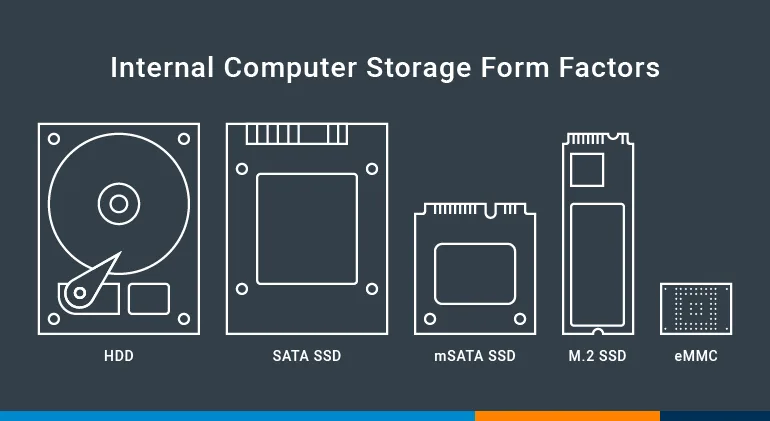
The number of internal computer storage types has grown significantly over the years. It wasn’t that long ago when the only storage decision you had to make was how much capacity you needed. The amount of data you can put on your storage medium of choice is still an important factor, but it’s far from the only one.
Internal Computer Storage Types
Below we’ve broken down the most common internal computer storage types and listed a few pros and cons for each. The right choice for your project will include a combination of factors, but this high level overview should help.
HDDs
HDD stands for hard disk drive, which are sometimes still called “platter” drives. They consist of spinning disks, coated with a thin magnetic film, onto which data is written and read from. Most personal computers used HDDs until the 2000s, when solid state drives, or SSDs, began growing in popularity.

Pros
Lower cost per GB than SSDs
Available in high capacities
Cons
Physically larger than SSDs
Moving parts vulnerable to damage
Require cabling for data and power
Require more power than SSDs
Poor random access latency
SATA SSDs
When compared with the other solid state options, Serial-ATA, or SATA SSDs most closely resemble their hard disk counterparts. SATA SSDs, also sometimes called 2.5-inch SSDs, provide three to four times the read/write speeds of HDDs and use the same interface. Check out our full blog post and video comparing HDDs and SSDs.

Pros
Faster than HDDs
Cons
Slower than other SSDs
Require cabling for data and power
It’s important to note that 2.5″ drives, both HDD and SSD, are available in differing heights. This can be especially important if you’re planning to use them in hot swap bays. Check out our blog about hot swap bays and hard drive height to learn more.
mSATA SSDs
Mini-SATA, or mSATA SSDs are smaller than their standard SATA SSD counterparts. With no external enclosure, mSATA SSDs fit more easily into compact devices and offer similar performance and specifications to SATA SSDs, but typically have lower storage capacity. mSATA drives share a form factor and connector with Mini-PCIe cards.

Pros
Faster than HDDs
Smaller than SATA SSDs
No cables required
Cons
Typically lower capacity than SATA SSDs
Slower than other SSDs
Capacity limited to 1TB
eMMC Storage
Memory cards, also called Multi Media Card (MMC) storage, are found in a wide range of electronics. They were the precursor to Secure Digital (SD) storage, which is most commonly found in digital cameras and cell phones. Embedded MMC (eMMC) directly affixes the MMC storage to the system’s motherboard. eMMC is a popular storage option for mobile and other compact devices that prioritize space savings and value.

Pros
Smallest of the commonly available storage options
Low cost
No cables required
Cons
Low capacity
Slower than other SSDs
Not replaceable or upgradeable
Not reliable in environments with unstable power
M.2 SSDs
M.2 SSDs look very different from SATA SSDs and more closely resemble sticks of RAM than traditional hard drives. Initially designed for high-speed storage in space-constrained devices like laptops, M.2 SSDs are available in two distinct versions based on how they interface with the computer’s motherboard. We’ve previously covered much more about the M.2 form factor.

SATA M.2 SSDs
Pros
Faster than HDDs
Smaller than HDDs and SATA SSDs
No cables required
Cons
No NVMe support (see paragraph below for more info)
Lower data read and write speeds than PCIe M.2 SSDs
Higher cost
PCIe M.2 SSDs
Pros
Fastest data read and write speed
Smaller size when compared to HDDs
Supports NVMe (see paragraph below for more info)
No cables required
Cons
Higher cost
Higher power consumption (still lower than HDDs)
What is NVMe?
Until fairly recently, communications protocols for storage drives hadn’t changed much since the days of HDDs. In 2011, Non-Volatile Memory Express (NVMe) was released with the goal to increase the performance capabilities of SSDs. NVMe storage drives communicate via the higher speed PCIe bus, rather than the SATA connections that most of their predecessors use.
Storage drives that use the NVMe protocol start the read and write tasks faster, transfer more data, and finish operations more quickly. According the NVM Express group, who introduced the standard, “current PCIe 3.0 x4 NVMe SSDs are 6-7x faster than a SATA SSD, and PCIe 4.0 SSDs are 12-13x faster than a SATA SSD”.
Which of the internal computer storage types should you choose?
Ultimately, your choice of internal storage drive will depend on what you need your system to do. In tandem with the pros and cons above, you’ll want to consider:
How much storage capacity you need
How fast you need to read and write data
What environmental factors your system will be exposed to
What form factor drives your system can support
Your budget for storage drives
Your need to replace or upgrade drives
As far as storage options in OnLogic Systems, here’s some expert advice from Sales Engineer Pete Pikulski.
“We’ve largely moved away from recommending HDDs for use in our fanless systems. Most HDDs have an ambient temp range of 50-60°C, which isn’t suited for use inside a fanless enclosure. SSD technology has also come a long way in the past few years. Frequent re-writes had previously been a limiting factor for some applications, but modern SSDs don’t generally suffer from the same potential longevity challenges as older drives. Many of today’s drives are rated to allow for a complete rewrite every day for 3+ years without degradation.”
If you’re working on an industrial computing project and have questions about your storage options, our solutions specialists can help.
